
A lot of times, you have something like a description column and you want to display it in a GridView. But since for some of the rows the description column can be very long, it doesn’t always work very well. One solution is where you set the TD’s attribute NOWRAP, then the column runs off to the right for as long as is needed. The solution I sometimes employ is the following:
First, here is my sample table:
Copy Text
Copied
Use a different Browser
CREATE TABLE Categories
(CategoryName varchar(20),
Description varchar(1000))
And here is the SQL that is going to bind to my GridView:
Copy Text
Copied
Use a different Browser
SELECT c.CategoryName,
CASE WHEN LEN(c.Description) > 30
THEN SUBSTRING(c.Description,1,27)+'...'
ELSE c.Description END AS LineDescription,
c.Description AS FullDescription
FROM dbo.Categories c
ORDER BY c.CategoryName
Notice that the Description column is in there twice. Once where it maxes out at 30 characters (the LineDescription column), and the second one that contains the full text (the FullDescription column.) This brings back a table that looks like the following:
| CategoryName | LineDescription | FullDescription |
| Beverages | Soft drinks, coffees, teas,… | Soft drinks, coffees, teas, beers, and ales |
| Condiments | Sweet and savory sauces, re… | Sweet and savory sauces, relishes, spreads, and seasonings |
| Confections | Desserts, candies, and swee… | Desserts, candies, and sweet breads |
| Dairy Products | Cheeses | Cheeses |
| Grains/Cereals | Breads, crackers, pasta, an… | Breads, crackers, pasta, and cereal |
| Meat/Poultry | Prepared meats | Prepared meats |
| Produce | Dried fruit and bean curd | Dried fruit and bean curd |
| Seafood | Seaweed and fish | Seaweed and fish |
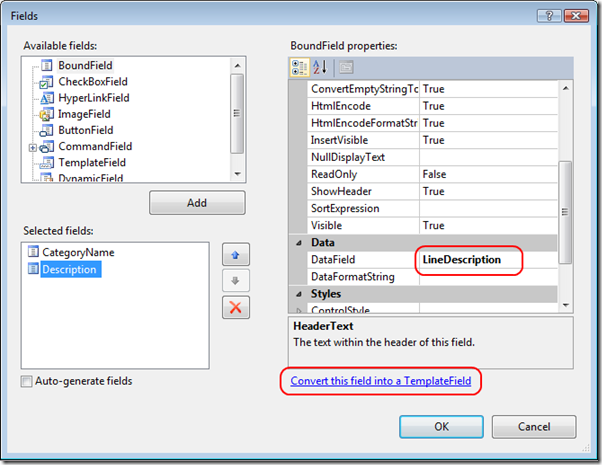
So, to bind this to the GridView we bind the first two columns only. The first GridView column is bound to the CategoryName data column, and the second one is bound to the LineDescription data column with the heading title of “Description”. In the second GridView column, we also click the “Convert this field into a TemplateField” as shown below.
We save this and then edit the templates for the GridView columns. For the Description column, we edit the ItemTemplate and we bind the ToolTip to the FullDescription data column.
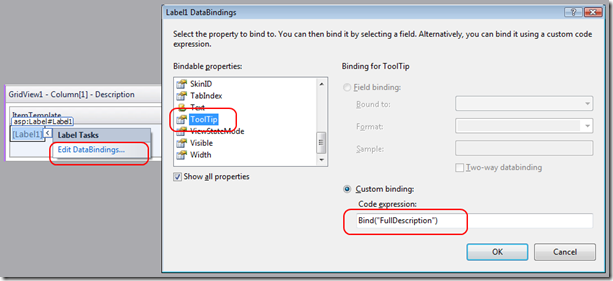
Now we have the GridView column that is titled “Description” bound to the LineDescription data column, and the tooltip is bound to the FullDescription data column. We can run this and see how it works:
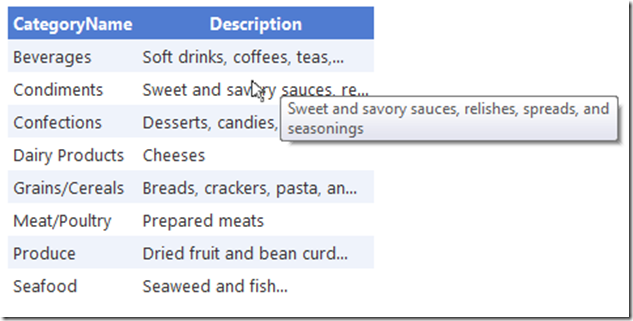
So now we have a short description in our grid, but the user can easily see the full description in the ToolTip.